How to Cast a Video Greeting to Your Smart TV for the Ultimate Party Surprise
Transform a simple digital video message into a shared, cinematic experience. Learn the step-by-step methods to cast custom video greetings to any smart TV.
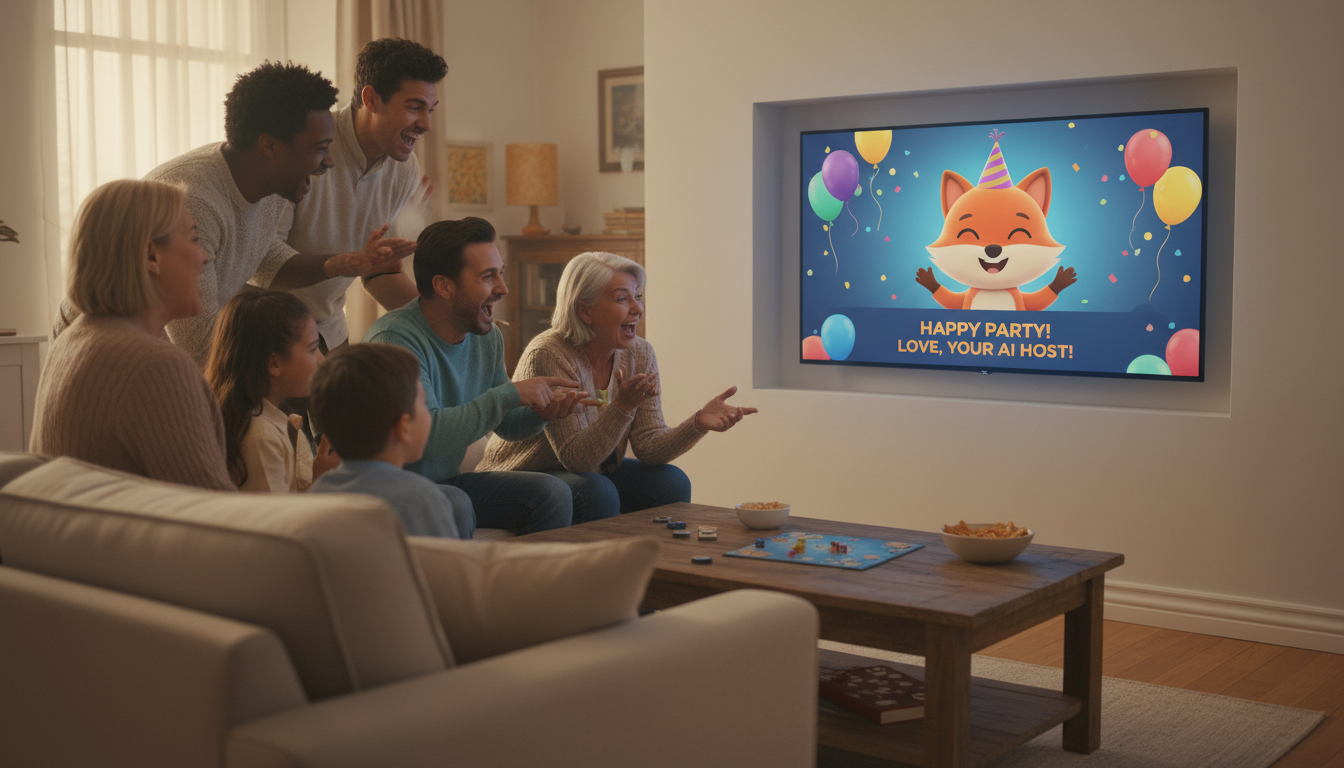
Casting a custom video greeting to your smart TV is the easiest way to transform a quick digital message into a shared, theater-like event. To do this, ensure your smartphone or laptop is on the same Wi-Fi network as your smart TV, open the video, and tap either the AirPlay icon (for iOS devices) or the Cast icon (for Android and Chrome browsers). If local Wi-Fi is spotty or unavailable, you can download the video file directly to a USB drive or connect your laptop to the TV via an HDMI cable for a foolproof backup.
The Big Screen Upgrade: Why Casting Beats Passing the Phone
Huddling around a tiny six-inch phone screen ruins the momentum of a surprise party or a lively family gathering. Only one or two people can see the screen at a time, the audio gets lost in background chatter, and the moment loses its magic. Bringing that video to the living room TV changes the entire dynamic. Everyone gets to watch the recipient's face light up in real time, making the celebration feel like a cinematic event.
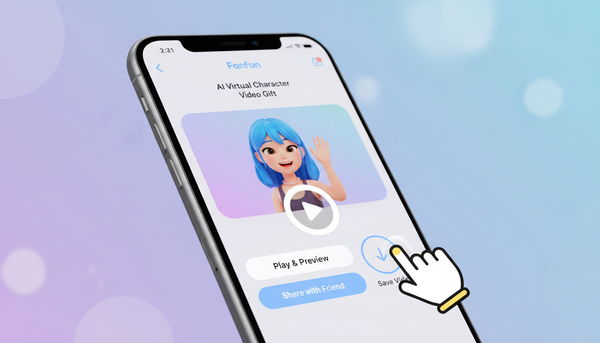
When you create a custom Fanfun video message—whether it is a playful roast, a warm milestone celebration, or a custom video from an AI character—it deserves to be experienced together. Because AI-generated characters can sound incredibly fun and engaging, displaying them on a large screen maximizes the comedy or the sentiment. To make sure the dialogue carries clearly across a noisy room, you should point readers to our guide on scripting a realistic character video greeting. A well-crafted script with punchy lines ensures your TV speakers deliver the message with maximum impact.
Step-by-Step: How to Cast Your Video Greeting to Any Smart TV
There are three primary ways to send your video greeting from a personal device to the big screen. Choose the method that best matches your tech setup.
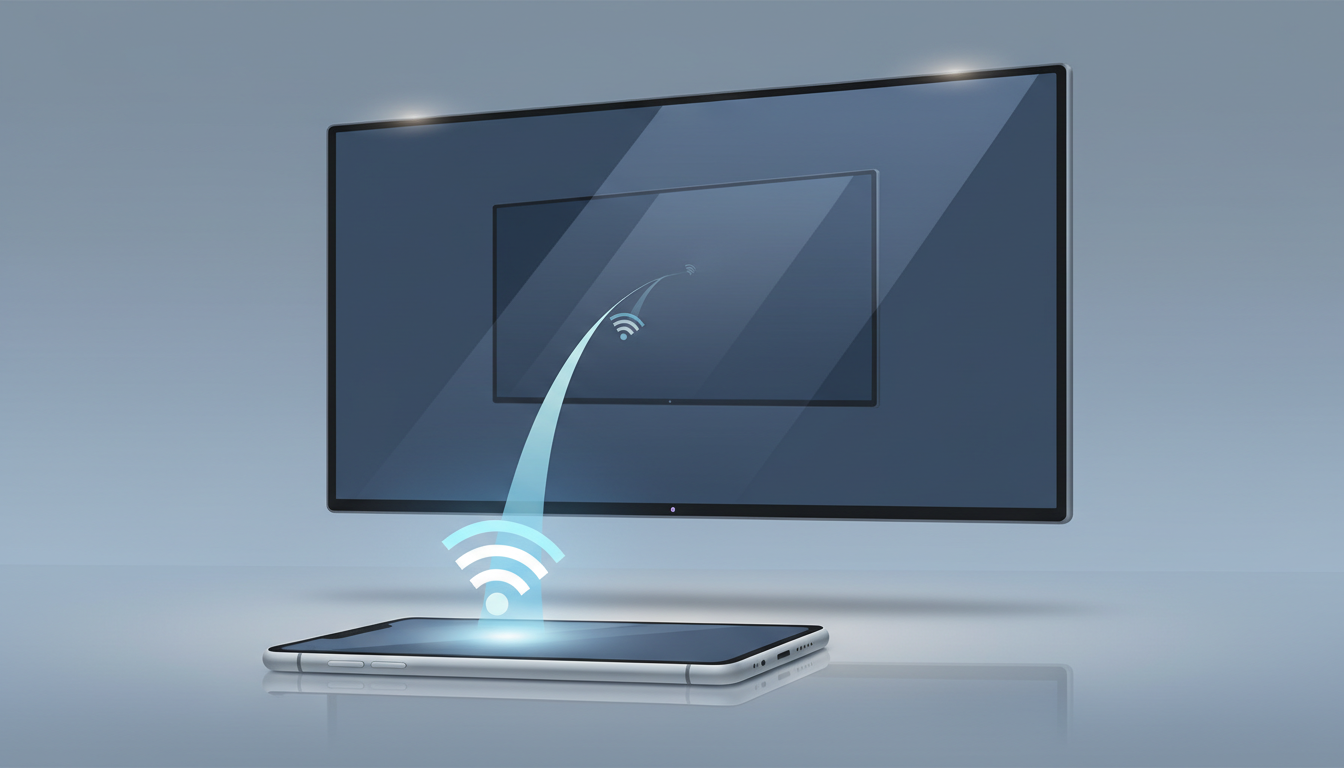
Option 1: Apple AirPlay (iOS to Apple TV or Compatible Smart TVs)
If you are using an iPhone, iPad, or Mac, AirPlay is the most seamless path to a smart TV.
- Confirm that your Apple device and your smart TV (or Apple TV box) are connected to the exact same Wi-Fi network.
- Open the video file or the browser page containing your video greeting.
- Tap the Share button or look directly for the AirPlay icon (a rectangle with a solid triangle at the bottom).
- Select your smart TV from the list of available devices.
- If a passcode appears on the TV screen, enter it on your Apple device to begin mirroring.
Option 2: Google Chromecast (Android or Chrome Browser)
For Android devices or anyone using a Chrome browser on a laptop, Chromecast is the go-to protocol.
- Connect your device and your Chromecast-enabled TV to the same Wi-Fi network.
- Open the Google Home app (on mobile) or open the video in a Google Chrome browser window (on a computer).
- If using Chrome, click the three dots in the top-right corner of the browser and select 'Save and share', then click 'Cast...' (or look for the Cast icon in your video player).
- Choose your TV or Chromecast device from the list.
- Play the video; it will automatically stream to the screen.
Option 3: The Direct USB or HDMI Backup
When Wi-Fi is slow, unstable, or non-existent at a rented party venue, bypass wireless casting entirely.
- HDMI Cable: Plug one end of an HDMI cable into your laptop and the other into your TV's HDMI port. Switch the TV source to the correct HDMI input, and your laptop screen will mirror onto the TV.
- USB Drive: Download your video file as an MP4 or MOV. Copy it onto a USB flash drive, plug it into the TV's USB media port, and use the TV’s built-in media player remote to find and play the file.
Let's compare these three methods to see which fits your party environment:
| Method | Setup Ease | Reliability | Best For |
|---|---|---|---|
| Apple AirPlay | Very Easy | High (requires good Wi-Fi) | Apple users and modern AirPlay-compatible TVs |
| Google Chromecast | Easy | High (requires good Wi-Fi) | Android users, laptops, and Google TV devices |
| HDMI/USB Cable | Moderate | Maximum (no Wi-Fi needed) | Venues with weak internet or complex guest networks |
Pro Tips for Flawless Audio and Video Playback
Nothing kills the mood of a surprise like a spinning buffering wheel or a muffled voice. To keep the focus on the fun, use these optimization strategies:
- Pre-download the file: Rather than streaming the video live from a web link or chat app, download the video file to your local device storage. This helps prevent sudden buffering, pixelation, or lags caused by unstable internet connections.
- Check the audio settings: Smart TV speakers can struggle in crowded rooms. Turn on any external soundbars or home theater speakers ahead of time. Play a dummy video beforehand to ensure the volume is balanced against expected party noise.
- Organize holiday playlists: If you are presenting multiple messages from different family members during busy holiday get-togethers, reference our tips on using instant holiday video greeting apps to keep your files organized, queued, and ready to play in order without awkward pauses.
Creative Ways to Cue the Video During a Gathering
The way you introduce the video can turn a great message into an unforgettable memory. Here are three creative ways to cue your presentation:
- The 'Fake Commercial' Trick: Set up the TV to play background music or a generic slideshow during the party. When the guest of honor sits down nearby, casually announce that you want to show a quick funny clip or 'commercial' you found online. Hit play on your custom greeting and watch their confusion turn into laughter.
- The Milestone Cue: For formal events, timing is everything. If you are celebrating a major milestone, you can suggest exploring our creative online graduation video greeting ideas to see how to structure the video's placement right before the cake cutting or the primary toast.
- Assign a Reaction Recorder: Do not try to cast the video and record the recipient's face at the same time. Designate a friend or family member to stand near the TV with their phone camera pointed at the crowd. Their only job is to capture the genuine smiles, gasps, and laughs as the video plays on the big screen.
Why is my smart TV not showing up as a casting option?
This is usually because your phone and TV are on different Wi-Fi networks (for example, one is on a 2.4 GHz band and the other is on a 5 GHz band, or one is on a guest network). Make sure both devices are on the exact same network band. You should also ensure casting or AirPlay is enabled in your TV's settings menu.
Can I cast a video greeting if my phone and TV are on different Wi-Fi networks?
No, standard wireless casting protocols like AirPlay and Chromecast require both devices to be connected to the exact same local network to communicate. If you cannot get them on the same network, using a physical HDMI cable or a USB drive is your best workaround.
How do I prevent phone notifications from popping up on the TV screen while casting?
If you are mirroring your entire phone screen, incoming text messages or app alerts will show up on the TV. To prevent awkward interruptions, turn on 'Do Not Disturb' or 'Focus Mode' on your phone before you start casting. Alternatively, cast only the video player or browser tab rather than mirroring your entire screen.