How to Adjust Speech Rate for Children's Virtual Character Videos
Slowing down virtual character voices keeps young children engaged. Discover pacing strategies, formatting tips for natural pauses, and script-writing ideas to make your video gifts feel magical.
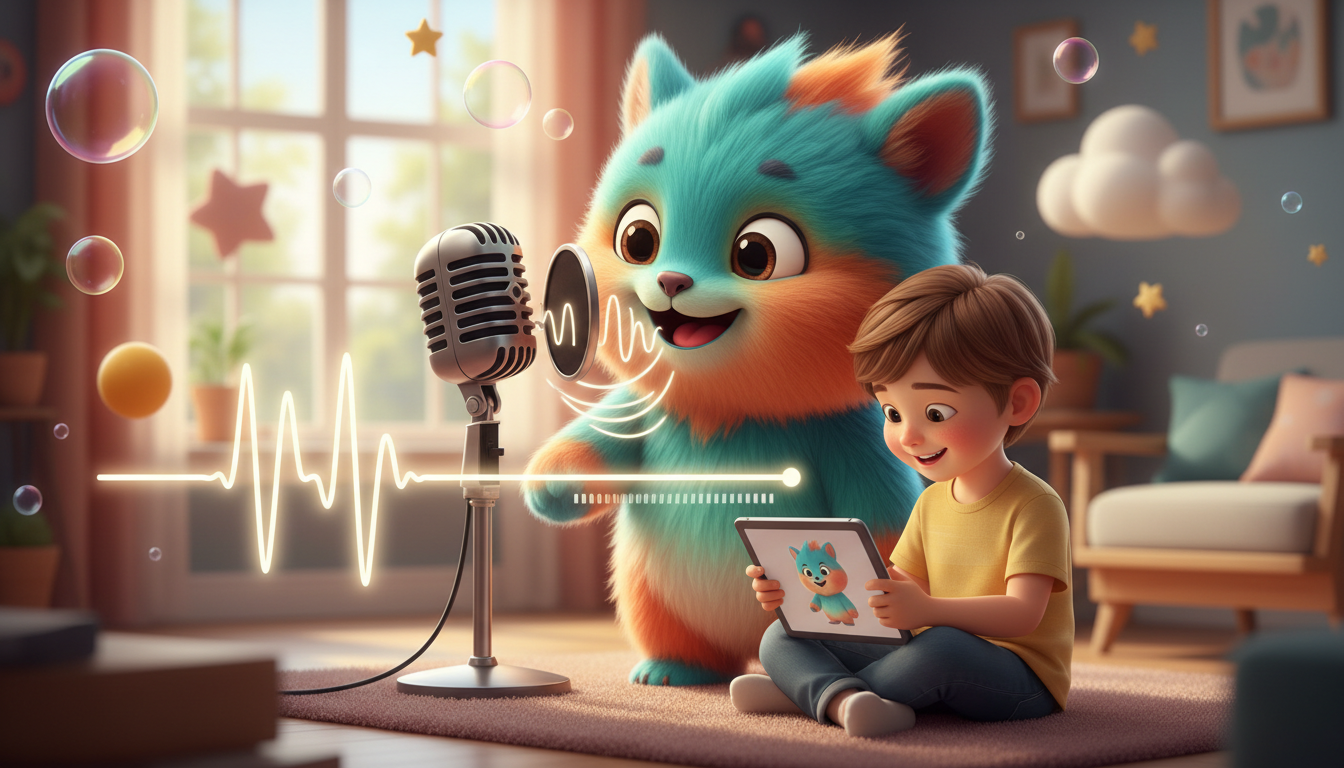
To keep young children engaged, it is often helpful to use a slower, more deliberate speech rate than standard adult conversation. Standard AI voice generators often default to a conversational adult pace, which can feel too fast for young children to process. By intentionally pacing your script and spacing out words with punctuation on platforms like Fanfun—where you can create personalized video gifts featuring popular AI characters—you give children the extra time they need to comprehend vocabulary, follow the story, and react to the screen.
The Ideal Speech Rate for Young Listeners
When adults listen to synthetic speech, their brains automatically process rapid dialogue. Children are still developing these linguistic skills, so a standard adult speaking rate can sound like a continuous, overwhelming stream of sound to a toddler or preschooler, leaving less room for them to absorb unfamiliar words or emotional cues.
A more deliberate pacing mirrors how preschool teachers and children's television hosts speak. It allows the child to focus on the magic of the message rather than struggling to keep up. When you use Fanfun to send a message from a beloved animated character, structuring your script to encourage a slower pace transforms a generic synthetic voice into a warm, magical, and highly believable interaction that feels truly personal.
Technical Methods to Control Voice Speed
Achieving a comfortable pace requires a combination of formatting and script structure. Depending on the platform you use, you may have access to speed controls to adjust the playback rate, which can be set to a slightly slower pace for younger audiences. When platform-level speed controls are not available, formatting your text is the most effective way to guide the voice's natural timing.
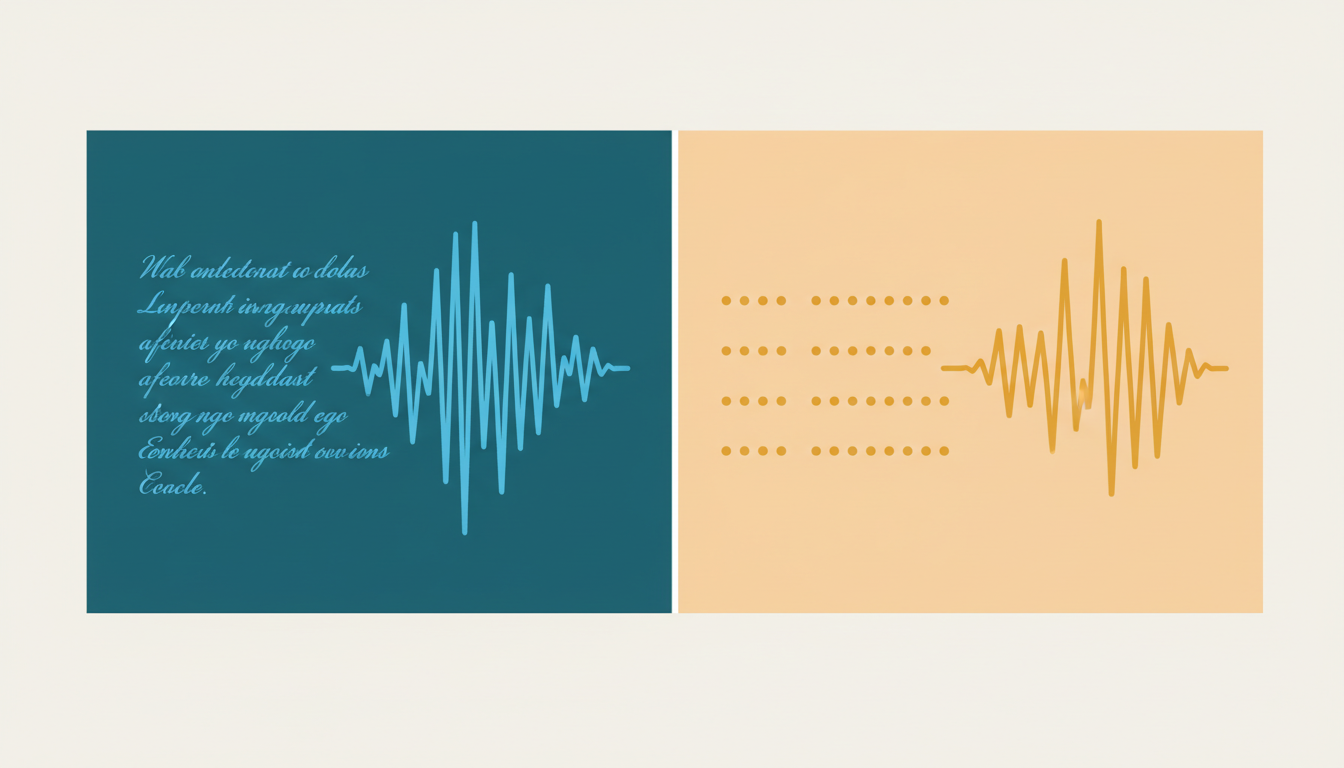
To make the speech sound natural, you must also consider the silence between those words. Depending on the specific AI voice generator, you can often use standard punctuation to encourage natural pauses:
- Ellipses (...): Try inserting an ellipsis to encourage a soft pause, which is helpful for transitions between thoughts.
- Dashes (—): A dash can sometimes create a brief pause that builds anticipation.
- Commas (,): Use commas to break up lists or clauses, prompting the voice to pause naturally.
For a deeper dive into the mechanics of timing adjustments, see our guide on how to adjust speech rate in synthetic voice generators for better timing.
To see how these formatting adjustments look in practice, compare the two script styles below:
| Script Type | Script Example | Pacing Style | Audience Impact |
|---|---|---|---|
| Standard Adult | "Hey there buddy! Happy birthday! I hope you have an awesome day filled with cake and presents!" | Standard | Fast pace. Words may blend together, making it harder for a young child to track the message. |
| Paced Children's | "Hey there, buddy! ... Happy birthday! ... I hope you have an awesome day ... filled with cake ... and presents!" | Slower / Spaced | Clear and easy to follow. Gives the child time to celebrate each exciting idea. |
Writing Scripts Designed for Slower Pacing
Pacing your script is only half the battle; the text itself must support a slower delivery. Long, complex sentences with multiple clauses can sound awkward when stretched out. Instead, write short, punchy sentences that express one clear idea at a time.
Interactive prompts are another highly effective strategy for children's videos. Ask a question, and then use punctuation or spacing to leave a silent beat in the script, giving the child a moment to shout their answer to the screen. For example: "What is your favorite color? ... ... Wow! That is a beautiful color!"
To complement a slower pace, you can also learn how to adjust character voice pitch for a softer speech tone. Pairing a gentle, slightly higher pitch with a slower speech rate ensures the virtual character feels friendly, inviting, and entirely non-threatening.
Previewing and Exporting Your Video Message
Before you finalize and export your video, always preview the audio generation. Adjusting the speed of synthetic voices can sometimes affect clarity or cause certain words to sound less natural. Listen closely to how the character pronounces key names and transition words.
If a specific word sounds unnatural at a slower speed, try adjusting the spelling phonetically (for example, writing "ha-py" instead of "happy") or swap the word for a simpler synonym. Once your video is ready, you can follow these steps to convert virtual character videos to MP4 format for mobile compatibility. This ensures the final file plays smoothly on tablets, smartphones, or any screen you use to share the magic with your child.
Does slowing down a virtual voice make it sound robotic?
It can if the speed is adjusted too drastically. Over-slowing a voice can sometimes stretch the audio, making it sound less natural. To keep the voice sounding clear, consider using moderate speed adjustments and relying on punctuation like ellipses (...) to create pauses instead of slowing down the actual words excessively.
Should I use different speech rates for toddlers versus older children?
Yes. Younger toddlers generally benefit from a much slower pace with very simple vocabulary and longer pauses. Older children can comfortably follow a slightly faster, more conversational delivery, which allows you to write slightly longer sentences while still keeping the message friendly and easy to comprehend.