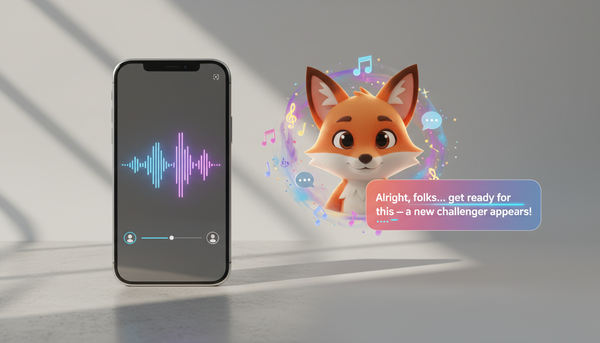
How to Add Character Voiceovers to YouTube Edits
Adding custom character voices can transform your YouTube video essays and fan edits. This comprehensive guide walks you through scripting, timeline syncing, and professional audio mixing techniques.
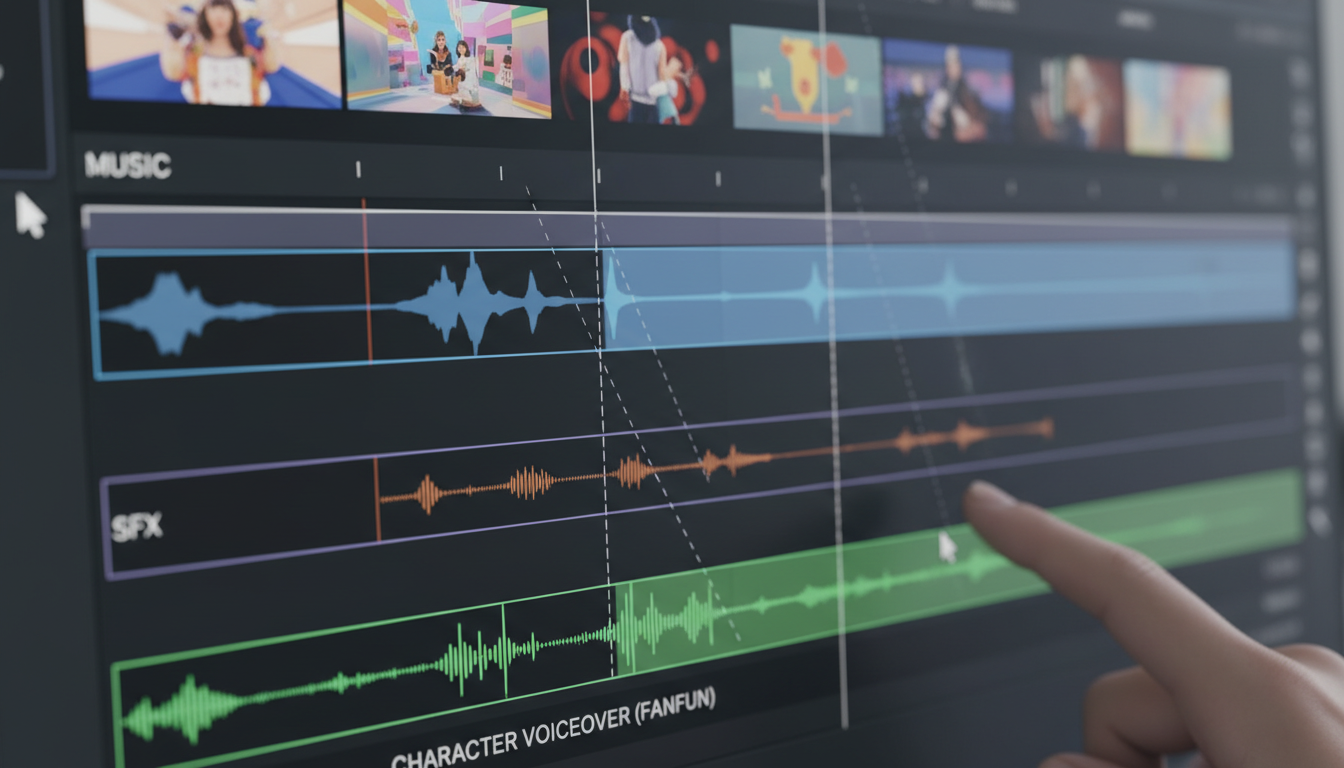
To add custom character voiceovers to your YouTube edits, you must generate the vocal track, import the files into your video editor (such as Premiere Pro, DaVinci Resolve, or CapCut), align the clips to your visual timeline using J-cuts or L-cuts, and apply professional audio mixing techniques like EQ and sidechain ducking. While AI voice generators make it easy to create custom dialogue, the secret to a professional edit lies in manual pacing, environmental reverb, and writing scripts that mimic a character's natural speech patterns.
The Character Voiceover Workflow for YouTube Creators
Character voiceovers elevate video essays, fan edits, and faceless YouTube channels by introducing a recognizable, highly engaging hook. Instead of relying on generic text-to-speech tools that sound robotic and disengaged, creators can use tailored character voices to build deep audience connection. If you run a faceless channel or want to scale your video production, you can explore how character voices can anchor a high-growth faceless YouTube channel to keep viewers watching longer.
Platforms like Fanfun allow creators to easily generate custom AI interpretations of popular characters. By choosing a character and entering a custom script, you can generate a custom AI video in just minutes. To turn these generated videos into a polished edit, you must follow a structured four-phase workflow: scripting, video generation, timeline syncing, and post-production mixing. Treating your virtual character voice like a real voice actor is key to achieving a professional final edit.
Step 1: Scripting and Generating the Character Audio
Suspension of disbelief relies entirely on how well your script captures the character's personality. If a character uses specific catchphrases, speech patterns, or a distinct vocabulary, those elements must be written into your script. Before generating your audio, you should learn how to write authentic dialogue for anime character voiceovers and other iconic fictional personas.
Standard text-to-speech generation often sounds flat because punctuation is ignored. To guide the AI voice generator's pacing, emphasis, and emotional delivery, use phonetic spellings and deliberate punctuation marks like ellipses (...), dashes (--), and capitalized letters for emphasis. Additionally, always generate multiple takes or line variations. Having a few options for a single line ensures you can select the emotional delivery that best matches the visual energy of your scene.
| Standard Text | AI-Optimized Script | Resulting Pacing & Delivery |
|---|---|---|
| I don't know, maybe we should go. | I... don't know. Maybe--maybe we should go? | Adds natural hesitation, realistic pauses, and a questioning tone. |
| That is extraordinary! | That is ex-TRAW-dinary! | Forces specific syllable emphasis and prevents a flat, robotic pronunciation. |
| Wait, look out over there. | Wait! Look out... over there! | Creates urgency and a natural mid-sentence pause for visual action. |
Step 2: Syncing and Pacing the Voiceover on Your Timeline
Once you have generated and downloaded your custom video files, import them into your non-linear editor (NLE) and extract the audio track. Do not simply drop a single, long audio block onto your timeline. For a dynamic YouTube edit, you must slice the audio into individual sentences or phrases so you can manually control the spacing and visual timing.
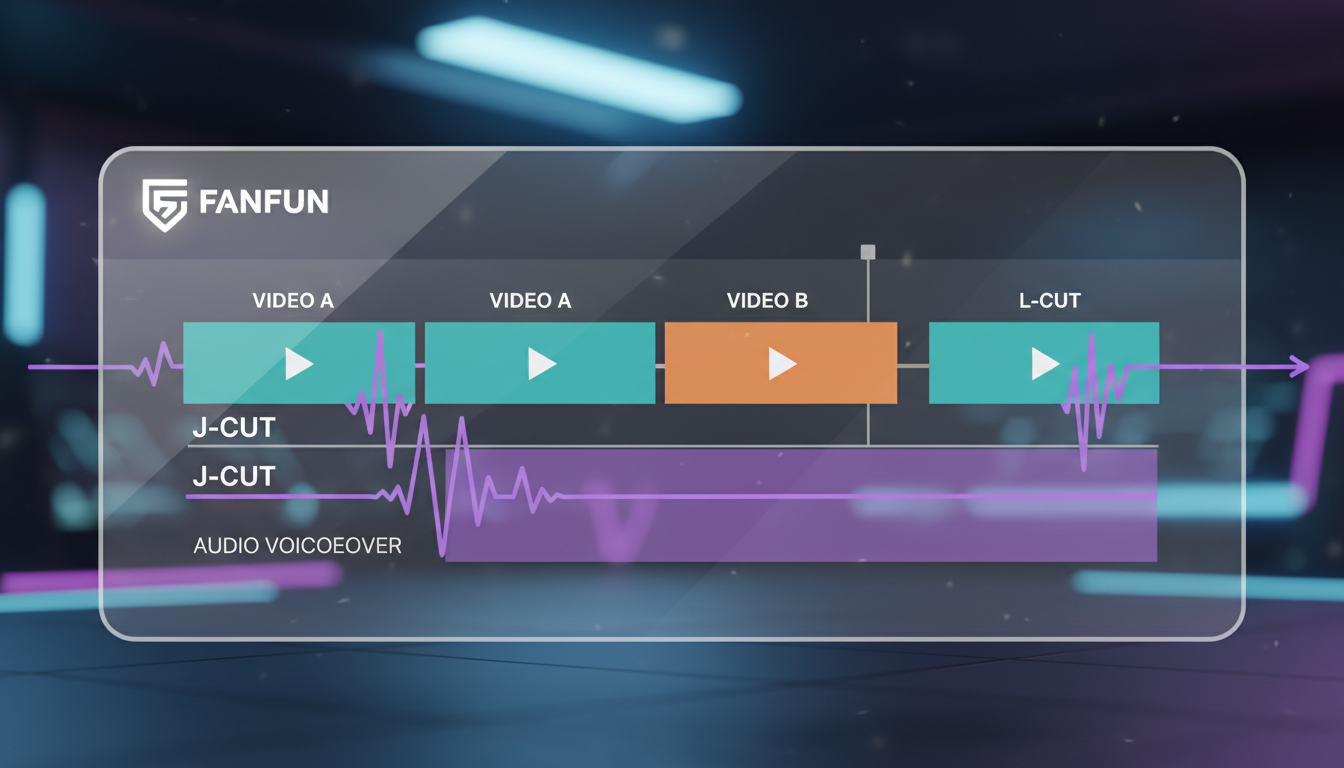
To keep the edit engaging, use J-cuts and L-cuts. A J-cut occurs when the audio of the next clip begins before you see the video transition. An L-cut occurs when the video cuts to a new shot, but the audio from the previous shot continues. By mastering these split edits, you will be mastering the perfect sync for custom character voiceovers so they flow seamlessly across your visual transitions.
Always leave room for your visuals to breathe. If a character speaks continuously without pauses, the video will feel rushed. Manually drag your sliced audio clips apart on the timeline to insert natural pauses, allowing sound effects, music swells, or visual reactions to take center stage between dialogue lines.
Step 3: Mixing and Sweetening the Audio for a Professional Finish
A dry, raw voiceover track layered directly on top of loud background music immediately breaks immersion. To make your character feel like they exist inside the world of your video, you must apply professional mixing techniques: EQ, sidechain compression, and environmental reverb.
- Equalization (EQ): Clean up your voiceover by applying a high-pass filter to roll off low-end rumble below 80Hz. To make the dialogue crisp and intelligible, add a subtle boost (1.5dB to 3dB) in the presence range between 2kHz and 5kHz.
- Sidechain Compression (Ducking): Place a compressor on your background music track and sidechain it to your character voiceover track. This automatically lowers (ducks) the volume of the music by 3dB to 5dB whenever the character is speaking, ensuring the dialogue is never drowned out.
- Environmental Reverb: If your character is visually standing in a specific space (such as a large hall, a bedroom, or outdoors), apply a subtle reverb effect to match that environment. A completely dry voiceover track will sound out of place if the visual scene takes place in a cavernous room.
By treating virtual character voiceovers with the same production standards as live-recorded voice talent, you can create polished, cinematic YouTube edits that capture and hold your audience's attention.
How do I fix mispronounced words in an AI character voiceover?
If the AI mispronounces a word, use phonetic spelling in your script. For example, if the generator struggles with "hyperbole," rewrite it phonetically as "hi-per-bo-lee" or "high-per-buh-lee" and generate the line again.
What is the best audio format to use for video editing?
When working with audio extracted from generated video files or external voice tools, uncompressed formats like WAV are preferred because they preserve the highest level of audio detail, making them ideal for EQ and mixing. If WAV is unavailable, a high-quality MP3 (320 kbps) or the native video audio track is a suitable alternative.
Can I use character voiceovers in YouTube videos that I plan to monetize?
Monetization policies depend heavily on copyright and fair use guidelines. While AI-generated interpretations of copyrighted characters are popular for transformative fan edits and parody, you should focus on original characters, public domain figures, or platforms offering commercial-use rights if you plan to monetize your channel directly through AdSense.